帮助中心
-
Quick Tutorials
-
Video Tutorials
- How to install and sign in to WhatsApp
- How to install and sign in to Instagram
- How to install and sign in to Snapchat
- How to install and login ThreeKingdoms
- How to Install and login to Amazon
- How to install and sign in to Line
- Successfully log in to WeChat and Momo
- How to install and log in to Facebook
- How to install and log in to Telegram
- V2ray usage tutorial
- How to install and log in to REDnote
- How to install and login to TikTok
-
Guide To Sign In
-
Purchase And Recharge
-
BlueGenie Box
-
Functional Process
-
Cloud Phone Operation
-
Supporting Services
-
App ane Files
-
System Apps
-
Common Problem
-
User Agreement
-
Activity
- Want to become a Hippo Cloud channeler?
- The annual double 11 carnival is here!
- Warm Christmas, prices plummet!
- Price Reduction Activity
- New Year's Warm Reminder
- K11 Channel Merchant Recruitment
- About Streaming acceleration
- Hippo Cloud payment methods
- Hippo Cloud helps users doing business
- Anniversary recharge gift!
- Christmas recharge rewards
- Happy Chinese New Year
- Flagship Model X13 Officially Launched
- Christmas Gift , recharge and get gifts!
- Spring Festival Holiday Reminder
- Public Beta Testing
-
Information
Third-party IP proxy configuration
Within the Hippocloudphone platform, cloud phones offer several third-party IP proxy settings.
Method 1: Install VPN software such as third-party IP proxy apps like V2ray in the cloud phone
Method 2: Configure the IP address of the cloud phone using commands
sock5:
Start: sslproxy start 'server ip' port true 'proxy account' 'password'
Stop: sslproxy stop
http:
Enable: settings put global http_proxy 'proxy address':port
Close: settings put global http_proxy :0```
Method 3: Configure the SOCKS5/HTTP IP proxy on the Hippocloudphone platform page
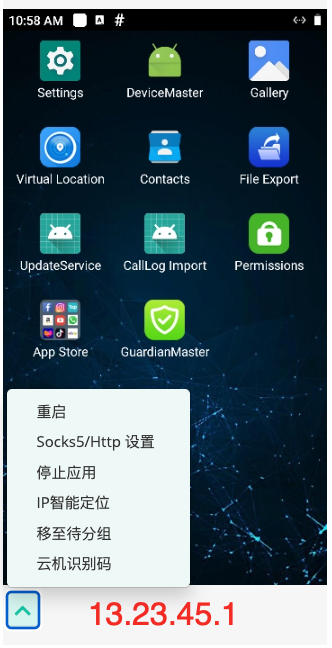
1) The third-party SOCK5/HTTP IP proxy settings are available in the lower left corner of the cloud phone preview image. Click "SOCK5/HTTP Settings" to open the pop-up window.
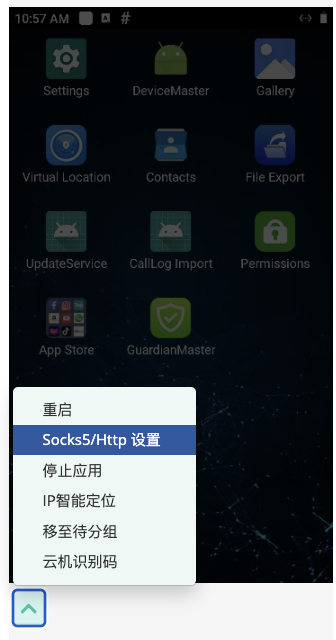
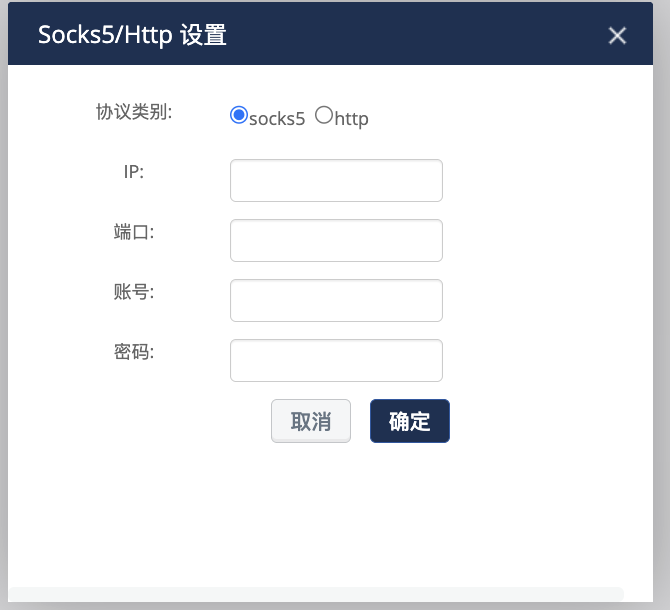
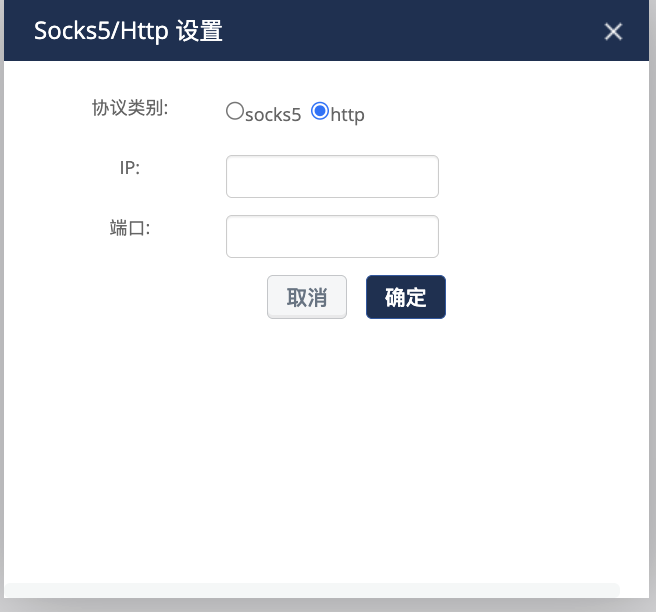
2) Configure Third-Party IP
For SOCKS5 setup: Provide login username, login password, server IP and port
For HTTP setup: Provide server IP and port
3. After the setup is successful, the third-party IP proxy address will be displayed below. You can also select "Cancel SOCKS5/HTTP", and the IP address will disappear after cancellation.